
Most OpenCart admins don’t notice their checkout is the problem until they check the numbers. A shopper adds four items, reaches a five-step checkout, and quits at step three because a shipping field she doesn’t need is marked required. Multiply that across a catalog of a few thousand SKUs, and the lost revenue adds up fast.
This is the exact gap that one page checkout for OpenCart closes, it takes every one of those steps and puts them on a single screen. Baymard Institute’s checkout research found that close to one in five shoppers abandon an order because the process feels too long or too complicated, and that most default checkouts carry far more form fields than they need. A properly configured one-page checkout solution for OpenCart removes that friction without removing any of the store’s actual functionality.
Why High-SKU OpenCart Stores Lose Orders at Checkout
Stores with large catalogs tend to carry more shipping methods, more payment options, and more address variations than smaller shops. Each extra field or redirect adds a decision point, and each decision point is a place where a customer can leave. Checkout friction compounds with catalog size in a way that a ten-SKU store never experiences.
Guest customers make this worse. Force a full registration before checkout, and a portion of first-time buyers will simply close the tab rather than create an account for a single purchase.
How One Page Checkout for OpenCart Actually Works
Instead of moving the customer through separate cart, login, address, and payment pages, the extension loads a responsive, ajax-based pop-up the moment someone clicks “Checkout.” Nothing reloads. The customer sees the cart summary, login or guest option, address, shipping, and payment in one continuous flow.
Knowband built its OpenCart One Page Supercheckout extension specifically to close this gap between a complicated default checkout and what high-SKU stores actually need. It doesn’t replace OpenCart’s backend logic; it restructures how that logic gets presented on the front end.
Step-by-Step: Configuring OpenCart One Page Supercheckout
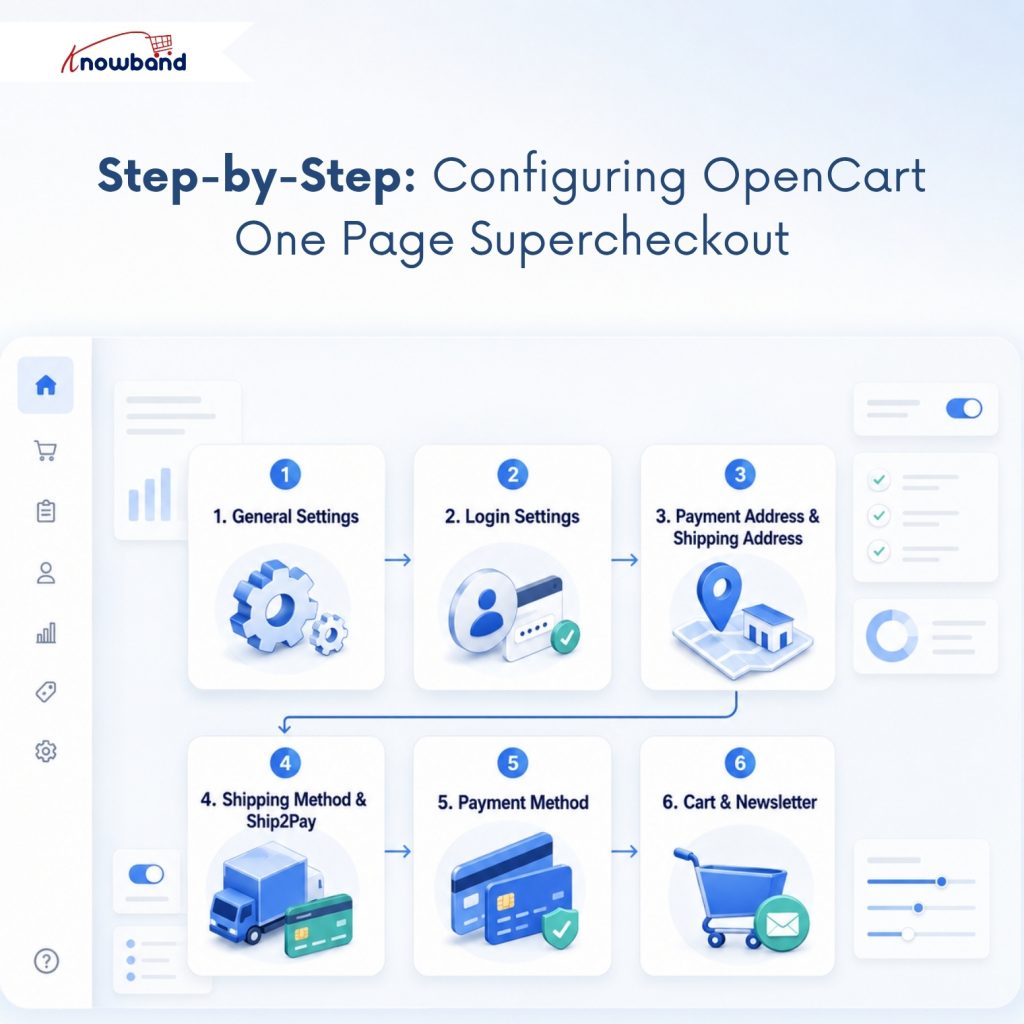
Configuring one page checkout for OpenCart properly means working through nine admin sections in order, found at Extensions > Modules > One Page Advanced Checkout:
- General Settings: enable the module, toggle the newsletter box, and set testing mode with a specific IP before going live.
- Login Settings: turn on Google, PayPal, and Facebook login if you want faster returning-customer checkout.
- Payment Address & Shipping Address: show, hide, or reorder fields separately for guests and logged-in customers.
- Shipping Method & Ship2Pay: map payment options automatically to whichever shipping method the customer picks.
- Payment Method: set titles, logos, and a default option.
- Cart & Newsletter: adjust cart field visibility and connect MailChimp if you’re capturing subscribers at checkout.
Knowband splits the admin panel into these nine sections precisely so that each piece can be adjusted without touching code.
Setting Up Guest Checkout and Social Login Without Losing Data
Guest checkout is the single biggest lever for reducing cart abandonment on a high-SKU store, and this module lets you enable or disable it independently of everything else. Turn on automatic guest registration, and the system creates an account in the background, then emails the password. The customer never has to fill out a sign-up form to buy something today. Social login adds a second path for returning shoppers who don’t want to type a password at all.
This combination matters because it removes the two most common reasons a customer stalls at login: not remembering a password, and not wanting to create a new account for a one-time order. An OpenCart simplified checkout module that handles both paths tends to move more first-time visitors through to order completion.
Configuring Shipping, Payment, and Ship2Pay Rules for Multiple SKUs
Large catalogs usually mean multiple carriers and multiple payment gateway options, and that’s where the Ship2Pay setting earns its place. It automatically narrows the payment methods shown based on which shipping method the customer selects, instead of listing every option regardless of relevance. A store running six shipping methods and four payment gateways can present only the combinations that actually apply to a given order.
Titles and logos for each method are editable from the backend, so the checkout still reflects your brand rather than a generic OpenCart layout. None of this requires template edits.
Testing the OpenCart Simplified Checkout Module Before You Go Live
Skip this step, and you risk breaking the checkout for every visitor at once. The built-in testing mode restricts the new supercheckout to a specific IP address, so you can click through the full flow, cart, address, shipping, and payment, exactly as a customer would, without exposing changes to live traffic. Confirm the mobile-responsive checkout layout separately, since a large share of high-SKU stores see more mobile sessions than desktop ones at checkout.
Only after that walkthrough passes should General Settings be flipped from testing to fully live.
Getting One Page Checkout for OpenCart Right the First Time
Done right, one-page checkout for OpenCart turns your existing multi-page flow into a single popup that logged-in and guest customers both move through quickly. The configuration itself isn’t complicated; it’s nine settings panels, most of which you’ll set once and rarely touch again.
Knowband’s module has been through more than ten thousand live installs, which is enough real-world use to have ironed out the edge cases that trip up larger catalogs specifically. If your store carries enough SKUs that shipping and payment complexity are part of the abandonment problem, configuring the OpenCart One Page Supercheckout module the way this guide lays out is the more direct fix than redesigning your checkout template from scratch.


