
The store owner wants to move from OpenCart 3.0.x to OpenCart 4.x. They expect a jump in speed just like upgrade news usually promises. One week later the results are a bit of a mix. The admin panel feels faster. Saving product edits is quicker and order lists load without that annoying lag. A few old PHP warnings in the error log are gone too.. The storefront tells a different story. Product pages still take forever to become interactive category pages are still loading files of images and a slider plugin is still slowing everything down by loading four scripts on every single page. This happens a lot. It is important to know why. OpenCart 4 performance is not one single number that changes the second you swap your files. Instead it is the result of your app, your PHP version, your database, your theme, your extensions, your hosting and the files your store serves. An upgrade can really help some of those parts. It does not fix every part automatically. Thinking that an OpenCart 4 migration is a fix for speed is one of the biggest mistakes people make when planning an upgrade.
In this article I will break down what usually gets better after moving to OpenCart 4.x what stays the same and what you still need to work on
1.0 What Changes After Moving to OpenCart 4.x?
Moving to OpenCart 4.x usually means you get a core codebase updated libraries and support for newer PHP versions. Older OpenCart 3.0.x versions were not built for these versions. For store owners running OpenCart 3.0 on a PHP version moving to OpenCart 4.x is often the best chance to switch to a PHP version that is actually supported and maintained. That combination is where most of the speed comes from.
You should keep two ideas separate here:
- Technical modernisation. Having a better codebase and making sure it works with current PHP and server software.
- Measured speed improvement. A testable drop in how long a page takes to load or how much server power it uses.
The first one does not guarantee the second. A newer PHP version can run better than an one but the real effect depends on your stores workload, your hosting and how much of your slowness was caused by PHP in the first place. If your store is slow because of a 4MB banner image or an extension that runs too many database queries upgrading the core code will not fix that.
The admin area usually feels faster because the backend is more tied to the core code and does not rely much on themes or marketing scripts. The storefront is different. It depends on things outside the core code, which is why you might not see big speed gains on the front end right after an upgrade.
2.0 OpenCart 4 Performance Improvements After Upgrade
When you look at what changed it helps to look at the backend the frontend and the hosting separately.
Backend. The admin pages, product management and order screens often get better because of core changes and newer PHP versions. If the core code fixed some database queries admin pages can feel much snappier. You should test the pages your team uses every day to see if there is a real difference.
Frontend. How fast the HTML. How product or category pages behave is influenced by the core but it is also shaped by your theme and your extensions. A fresh OpenCart 4 theme might run better than an old OpenCart 3 theme that you tried to carry over.
Infrastructure. Things like PHP, your database, your web server and your CDN live outside the OpenCart core. An upgrade gives you a chance to update these. It does not do it for you.
You should treat each of these as something to measure after you upgrade not as a guaranteed win.
2.0 Why an Upgrade Does Not Automatically Solve Performance Issues
People often make the assumptions when planning an upgrade. Let us look at them.
“OpenCart 4 is newer so the store will automatically be faster.” A version number does not tell you how your specific store will run. An OpenCart 4.x store on cheap hosting with a heavy theme can be much slower than a well-tuned OpenCart 3.0.x store on good hosting.
“Installing a version fixes slow extensions.” Extensions have their code and their own database queries. Updating the OpenCart core does not rewrite the code inside an extension. If an extension had code in OpenCart 3 it will likely still have bad code in OpenCart 4.
“The new version will solve database queries.” Custom code missing indexes or huge product tables are part of your data. A core upgrade will not rewrite your data or your custom code for you.
“PageSpeed will automatically become better after migration.” Speed scores are driven by image sizes, JavaScript and third-party scripts. These live in your theme and on your pages regardless of which OpenCart version you use.
4.0 PHP and Server Environment
You cannot separate OpenCart 4.x performance from the hosting it runs on. You have to look at the app and the server together.
Things to check include:
- Your PHP version. If it is still supported
- Your PHP OPcache settings
- Your PHP memory limits
- Your web server setup
- Your database server resources
- Your CPU and RAM
- How fast your disk is
- PHP-FPM settings
- Your HTTPS setup
- Response compression
- General server response time
If you upgrade OpenCart but keep your old weak hosting and do not tune your settings you are wasting a lot of potential speed. However if you pair an OpenCart 4 upgrade with PHP and good hosting you will likely see a real difference. (Always check the documentation to make sure your PHP version works with your specific OpenCart 4.x release before you start.)
5.0 Database Performance
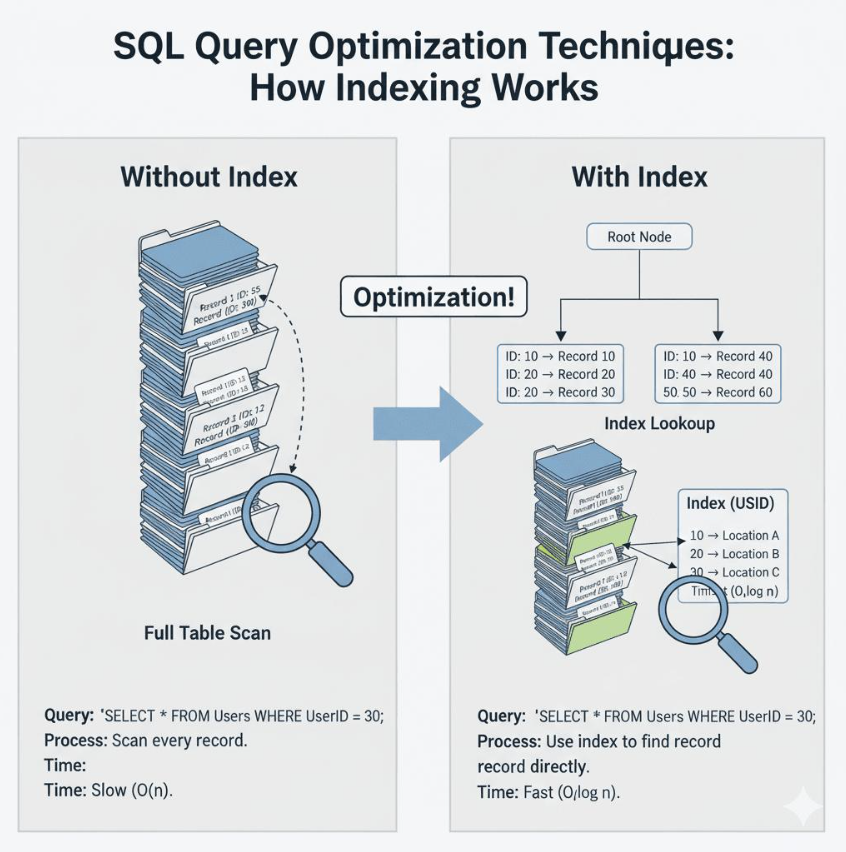
Upgrading the core will not make database problems go away. You have to find and fix them. Common reasons for OpenCart database performance are:
- Slow queries from custom code or extensions
- Missing indexes on columns you use to sort or filter
- Huge tables with too many products or complex data
- Messy order tables that have not been cleaned up
- Extension tables that were not set up correctly
- Bad logic for searching and filtering
To find these you should use slow query logs or database profiling tools. This is work that’s specific to your store. It does not change just because you changed your software version.
Also remember that adding indexes is not a fix for everything. Adding many indexes can actually slow down how fast you can write new data to the database. Only add them where you know they are needed.
6.0 Extensions and Modules
Extensions are often where you will find the speed gains—or the biggest problems—after an OpenCart 4 upgrade. Problems often come from code having two extensions that do the same thing, bad SQL or too many scripts loading at once.
After you upgrade you should do an extension audit:
- Make a list of every extension you have.
- Figure out which ones you actually need.
- Make sure each one is compatible with OpenCart 4.x.
- Check if each extension works with your PHP version.
- Turn off anything you do not use.
- Test your page speed with the extension on and then with it off.
- Check your error logs for extension problems.
- Watch your database to see if an extension is running many queries.
- Test your cart and checkout carefully after making changes.
This is important for any version. It is extra important right after an upgrade. Sometimes an extension “works”. Runs, in a way that is much slower than it should be.
7.0 Theme and Frontend Performance
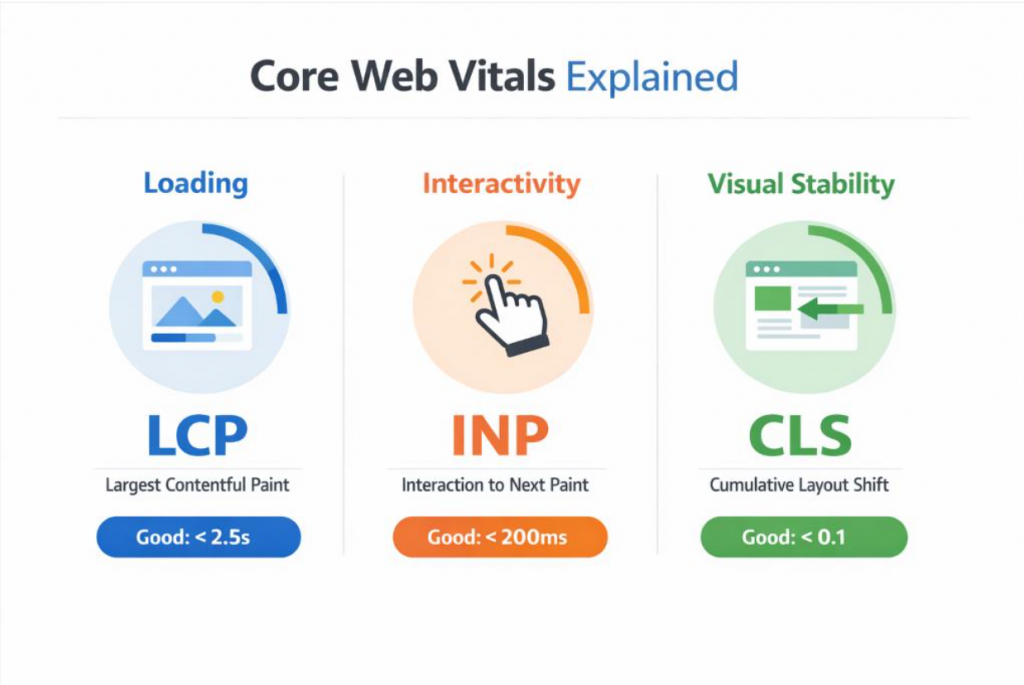
Just because your backend runs fast after an upgrade does not mean your frontend will. The two parts work in different ways. Frontend performance depends on things like HTML size how CSS is sent JavaScript running, heavy images, web fonts, sliders, product galleries, AJAX calls and extra scripts for things like chat, tracking or marketing.
These things directly change the metrics for OpenCart page speed and OpenCart website speed. These measurements are Contentful Paint (LCP), Cumulative Layout Shift (CLS), and Interaction to Next Paint (INP). You can be running the OpenCart 4 back end, yet the website will be slow if the theme is loading heavy images at the beginning of the page, if there are too many scripts to load at one time, or if the layout shifts around due to the loading of banners and cookie messages.When you check your theme after an upgrade look for code left over from the OpenCart 3 theme. Check if you are loading the CSS or JS files more than once. Also look at your third-party scripts to see if you actually still need them.
8.0 How to Improve OpenCart 4 Performance
Here is a checklist of steps to help improve OpenCart 4 performance after you upgrade. Do not just do these blindly. You should test, make a change and then test again.
- Keep the OpenCart core updated.
- Use a PHP version that works with your OpenCart 4.x release.
- Turn on. Set up PHP OPcache.
- Check your database by looking at query logs.
- Delete any extensions you do not use.
- Make sure your extensions are the versions for OpenCart 4.x.
- Look through your theme code for files or extra assets.
- Make your product, category and banner images smaller.
- Reduce extra JavaScript and CSS so they do not block the page.
- Check if your third-party tools are actually necessary.
- Set up your caching the way especially for pages like the cart or login.
- Use a CDN if your customers are spread out across the world.
- Try to lower your server response time through your host.
- Watch out for errors in your log files.
- Test your site using a mobile device, not a desktop.
- Retest after making any changes.
9.0 OpenCart 4 Speed Optimization Tips
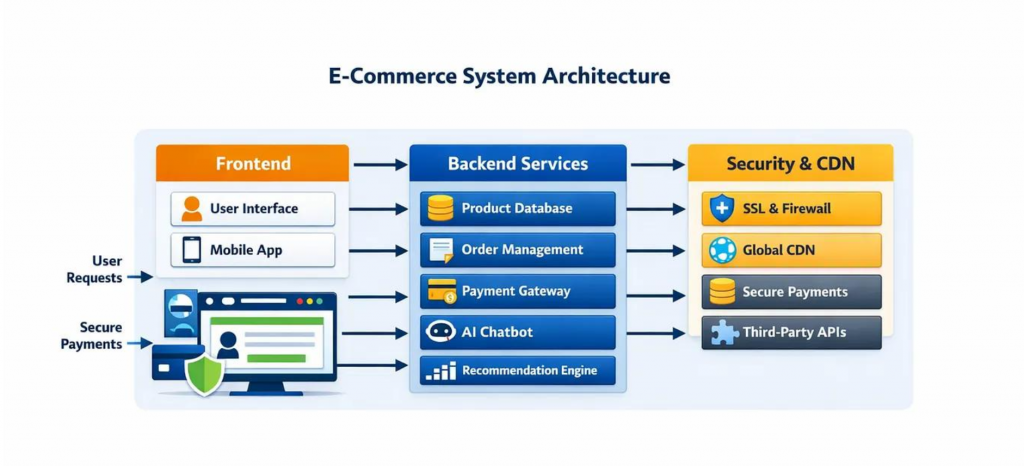
It is easier to fix a store if you look at it layer by layer. This helps you find the problem instead of guessing.
Server: Use a PHP version turn on OPcache check your web server settings use compression and make sure your TLS is set up right.
Database:. Fix slow queries check your indexing watch how often queries run on busy pages and keep your database clean.
Application: Check your extensions look at your custom code watch out for OCMOD or extension events and try to use fewer AJAX calls.
Frontend: Fix your images delay -essential CSS and JavaScript host your own fonts and do not rely too much on heavy third-party tools.
Delivery: Set up browser caching use a CDN for files and make sure your cache is actually working.
Each of these steps is important because of how OpenCart handles requests and talks to the database.
10.0 Caching
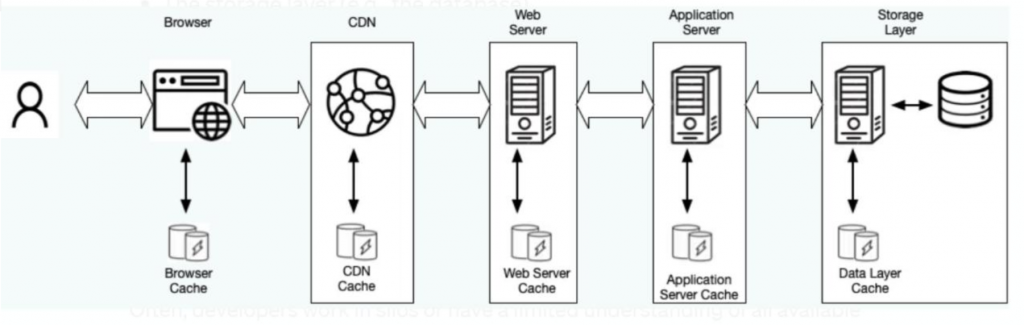
There are ways to use caching for an OpenCart 4 store. You can use browser caching, HTTP caching, OPcache, CDN caching or even application-level caching.
You should never cache everything the way. Pages like the cart, checkout, customer accounts and login pages need to be handled carefully. If you cache these wrong you might run into problems. For example one customer might see someone Cart or see the wrong stock levels. You must know which pages are safe to cache and which are not.
11.0 Images and Media
Images are usually what make OpenCart stores feel slow. An upgrade does not change your images. Your old product images, category images and banners from an OpenCart version stay exactly the same after you move to OpenCart 4.x.
I see this happen a lot: a product page keeps sending an image meant for a desktop to someone on a mobile phone. This happens because the theme was not updated to use images. To fix this you need to update your theme to use formats like WebP use proper compression and use lazy loading for images further down the page.
12.0 Server Response Time
To lower the server response time (TTFB) on an OpenCart 4 store you need to look at how PHP runs how fast the database works and if your extensions are adding too much weight. You should also check your hosting limits and your OPcache.
TTFB can help in measuring whether the backend is slow, but even if the TTFB is quick, this doesn’t necessarily mean that the website is fast as well, especially if the frontend of the website is a mess.
13.0 CDN
A CDN can help OpenCart 4 stores by sending images, CSS and JavaScript from a server that’s closer to your customer. This makes things load faster. Takes some of the load off your main server.
A CDN will not fix PHP, slow database queries, bad extension code or huge HTML files. It is important to know the difference between how fast the OpenCart application responds and how fast your files reach the user. A CDN only helps with the part.
14.0 Real-World Before/After Example
Before upgrade: A store uses an OpenCart 3.0.x version and old PHP. It has old extensions, a heavy theme, huge images and slow database queries during checkout.
After upgrade: The store moves to OpenCart 4.x with PHP. The backend feels faster and the admin area works better. Errors go away. The system is easier to manage.
However the product pages might still be slow because the images and scripts are still the same. The checkout might still be slow if the database queries were not fixed.
This is why you need a step. You must go back. Focus on images cleaning up the theme fixing the cache and checking the database. There is no number for how much faster it will get, as every store is different.
15.0 How to Measure OpenCart 4 Performance After Upgrade
To get a real comparison you must be careful.Check your website’s performance for home page, category page, product page, search, cart and checkout before doing any upgrades to your website. Record details like TTFB, LCP, CLS, INP and page weight.
After you upgrade run those tests. Use the device the same browser and the same network. Do not compare a desktop test from before the upgrade to a test from after the upgrade or you will get the wrong idea about whether the upgrade helped.
16.0 Performance Testing Tools
No single tool tells the story. You should use a different ones:
- Chrome DevTools. To see how requests and rendering work
- Lighthouse. For quick scores, on performance and best practices
- PageSpeed Insights. To track your Core Web Vitals over time
- WebPageTest. To see exactly how a page loads from different places
- Server monitoring tools. To check your CPU and memory
- Database slow-query logs. To find bad queries
- Browser Network panel. To check the size of your files
Using these together will give you a much better idea of what is actually slowing down your store.
17.0 Common OpenCart 4 Performance Issues After Upgrade
A lot of problems show up right after you upgrade. It is important to know that some of these issues are about how things fit together or how they were set up. They are not always performance drops caused by OpenCart 4 itself.
- Extensions that are installed but do not work right with the new version
- Theme problems that break your layout or make styles go missing
- New PHP warnings or errors from old code that is no longer used
- Old code left over from the previous version
- Database slow spots that were already there before the upgrade
- Slow calls to third-party APIs that hold up the page loading
- Too much JavaScript left over from your old theme
- Large images that were not fixed during the move
- Wrong or missing cache settings on your new setup
- Broken or double files loading from old theme folders
- Two different modules doing the same job
- Too many AJAX requests happening when a page loads
- Hosting that worked for the old version but is too small for OpenCart 4
You need to know if a problem is a real speed issue or just a compatibility issue. The fix is different for each one. One needs you to fix the code or settings while the other needs you to work on making things faster.
18.0 OpenCart 4 Optimization Checklist
18.1 Application
☐ Check OpenCart version to make sure it is supported
☐ Make sure all extensions are compatible and installed
☐ Delete any extensions you do not use
☐ Check custom code to make sure it does not use patterns
18.2 Server
☐ Make sure you use a supported PHP version
☐ Turn on and set up OPcache
☐ Ensure you have enough CPU and RAM for your traffic and products
☐ Check that your web server is set up right
☐ Turn on compression
18.3 Database
☐ Find and look at slow queries
☐ Check your indexes against how you use the database
☐ Watch large tables to see if they slow things down
☐ Check queries made by your extensions
18.4 Frontend
☐ Fix images and make sure they are the right size
☐ Check CSS to remove extra stuff that slows down loading
☐ Check JavaScript and make it load later when possible
☐ Check third-party scripts to see if you really need them
☐ Test how things look and run on mobile
18.5 Delivery
☐ Set up browser caching the right way
☐ Look into using a CDN for your files
☐ Test cache rules on your dynamic pages
☐ Make sure HTTPS and TLS are working
18.6 Monitoring
☐ Write down your speed before you upgrade
☐ Write down your speed after you upgrade using the tests
☐ Keep an eye on errors and logs all the time
☐ Test important paths that customers take on your site
19.0 What Actually Improved After the Upgrade?
| Area | Potential impact after OpenCart 4 upgrade | Still requires optimisation? |
| Core application | Newer code that’s easier to manage | You still need to check custom code and event hooks |
| PHP/runtime | Works with new supported PHP versions | You must set up the PHP version and OPcache |
| Extensions | A chance to swap out old ones | You must check each extension for compatibility and speed |
| Theme | You can use a theme structure | You still need to check your theme files and code |
| Database | No changes happen automatically | You still have to fix queries and indexes yourself |
| Images | No changes happen automatically | You still need to compress and resize images yourself |
| JavaScript | No changes happen automatically | You still need to check third-party scripts and files |
| Caching | A chance to set up caching | You must set it up right for your specific pages |
| CDN | No changes happen automatically | You still need to set this up |
| Hosting | A chance to get better hosting during the upgrade | You still need to check your server size and settings |
| Third-party integrations | No changes happen automatically | You must check each integration one by one |
The pattern in this table is clear. The upgrade gives you a start but you still have to do the hard work to make every part of your store run well.
Final Recommendations
Consider that migrating to the OpenCart 4.x is the beginning of your task, not the end. Here is a recommended process for doing it:
Upgrade → Compatibility check → Configure server settings → Database check → Extensions check → Theme fix → Image fix → Setup caching & CDN → Speed test → Monitor
Do not try to get a high score on a testing tool. You want a store that is fast stays running is easy to fix and works well when many people visit. Treating the upgrade as one step in a longer process is the best way to do it.
FAQ
Q: Does upgrading to OpenCart 4 make a store faster?
A: It can help some parts, like the admin area or working with PHP but it does not make everything faster automatically. Your frontend and database speed depend on things.
Q: What are the main OpenCart 4 performance improvements after upgrade?
A: Most people notice the admin area feels better and it works with PHP versions. You should test this on your store to be sure.
Q: How can I improve OpenCart 4 performance?
A: Do not just rely on the upgrade. Focus on your PHP and server check your database look at your extensions fix your images and theme and set up your caching.
Q: Which are the optimal speed optimization techniques for OpenCart 4?
A: Fix the problem layer-by-layer: from the server, to the database, to the application, and to the front end delivery.
Q: Can OpenCart extensions slow down OpenCart 4?
A: Yes. If an extension is old or not made well it can slow down your store even if you use OpenCart 4.
Q: Does OpenCart 4 improve page speed automatically?
A: No. Page speed depends on things, like images JavaScript and your hosting. The upgrade does not change those things for you.
Q: How can I reduce server response time in OpenCart 4?
A: Check your PHP and OPcache settings look at your database queries check your extensions and see if your hosting has power.
Q: Should I use a CDN with OpenCart 4?
A: A CDN can help deliver files to people far away but it will not fix problems with your database or your application. You have to fix those.
If you have questions or need assistance with your website performance or migration, our experts are here to help. Contact the Knowband team at [email protected] today for reliable ecommerce plugins tailored to your eCommerce needs.


