
Most slow OpenCart stores I’ve looked at weren’t slow because somebody wrote bad code. They were slow because the OpenCart performance settings picked during the build were never looked at again, and then two years of products, extensions and photos landed on top. What felt snappy at 200 products behaves differently at 8,000 with a four-level category tree and a mega menu.
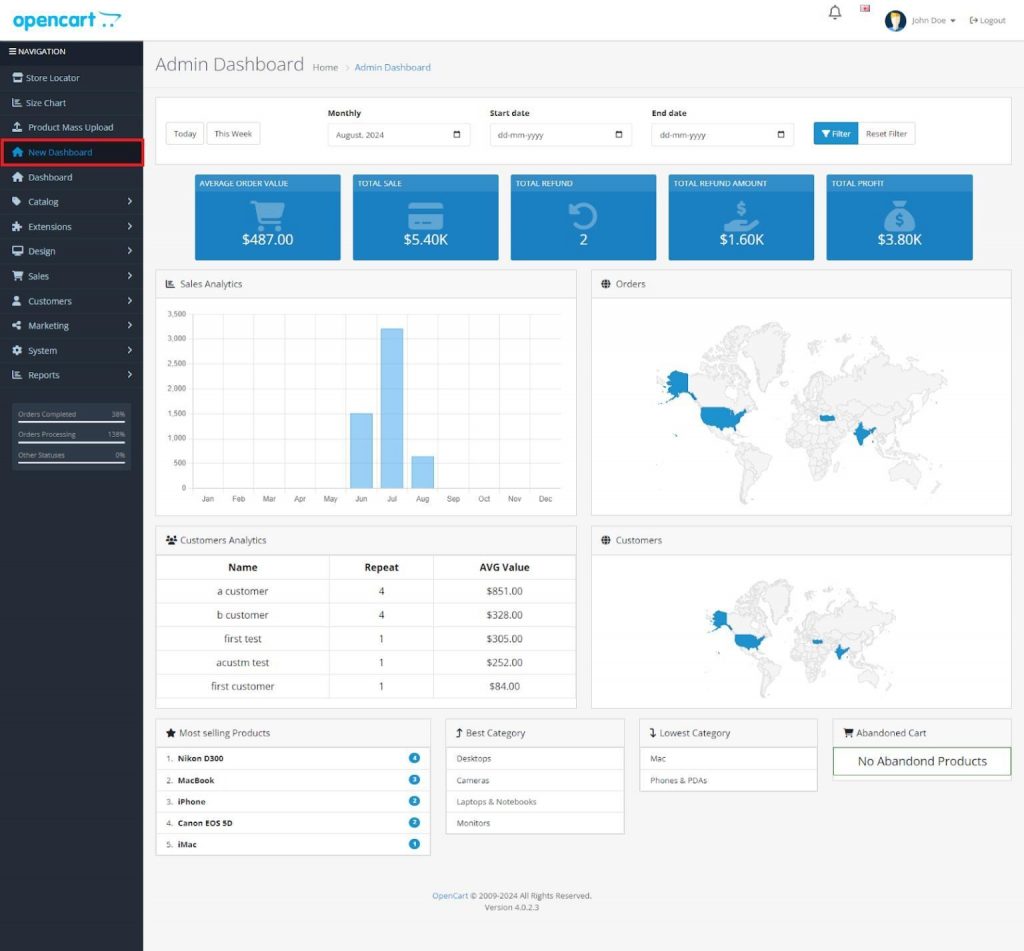
Five places to start your audit. Category product counts. Theme and compiler options that made sense during the build and never got switched back. Image dimensions that don’t match what the template renders. An error log nobody has opened since launch. And whatever database structure the store inherited from an install done two or three versions ago. Any one of those is easy to shrug at on its own. Stack them on a category page that also loads a sidebar, a banner module and a currency switcher, and you’re paying for all of it on the requests that actually matter to revenue.
A warning about the admin paths below. 3.x and 4.x don’t agree on where things live, and a commercial theme or an extension can move or override them again. Use my paths to find the setting, not as evidence of what your install does. If a path doesn’t match what’s on your screen, that’s your version, not a broken store.
Why a Working Install Isn’t Automatically a Fast One
Some of what follows is a genuine OpenCart default. Some of it is a development setting that was correct in March and wrong by June. Some of it is a deliberate choice somebody made for a reason that expired a while ago. And some of it was fine until the catalogue outgrew whatever anyone tested against.
Sort what you find into those four buckets before you change anything, because they need different responses. A leftover dev setting is a two second fix. A deliberate choice needs a conversation with the client. Something that only started hurting at 8,000 products needs a measurement, not an opinion. Most OpenCart performance optimization work goes sideways right here, when somebody skips the sorting and bolts a caching layer onto a store that’s still doing avoidable work underneath it.
Settings That Add Queries as the Catalogue Grows
Category Product Count
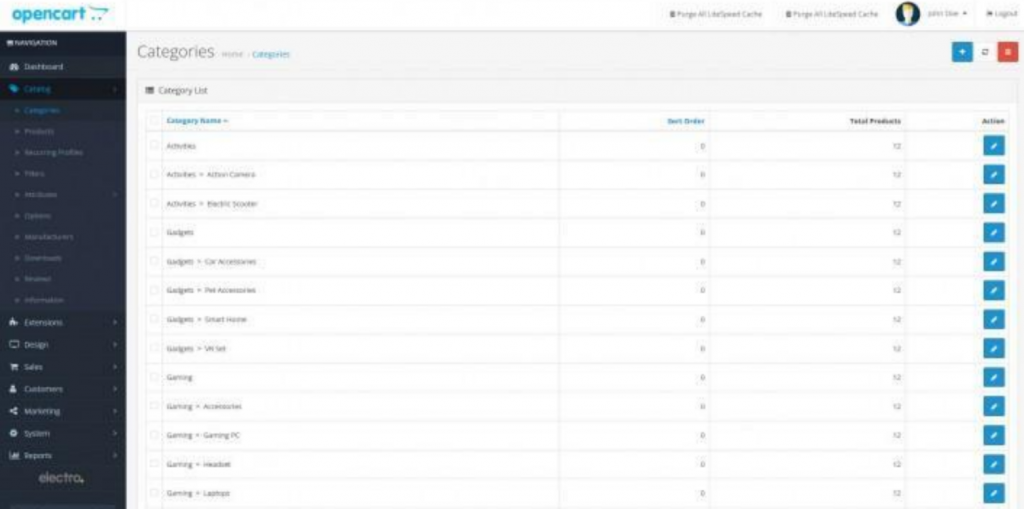
On 3.x: System > Settings, edit the store, Option tab. On 4.x there’s an equivalent option, but the tabs and labels aren’t arranged the same way, so go looking instead of clicking from memory. This is the setting behind the numbers beside your category names. Shoes (142), Bags (67).
To produce those numbers, OpenCart has to count matching products for the categories it’s rendering. There’s no fixed cost to quote you, because it depends entirely on what your pages render. How many categories appear on the page. How deep the tree goes. Whether the menu draws children and grandchildren or stops at the top level. How big the catalogue is. Six flat categories and you’ll never notice. Three hundred categories, a mega menu going three levels deep, and a category sidebar module on every page, and now you’ve got a real pile of extra count queries per request.
That’s why this lands as one of the more common OpenCart performance issues on big stores specifically, and why the advice you read about it sounds so inconsistent. Both camps are right about their own store.
The practical bit: if the business doesn’t need visible counts, switch it off, then compare query counts on your heaviest category page before and after. You’ll know within ten minutes whether it mattered here. And if somebody does use the counts, leave them alone and go look elsewhere. Nobody ever bought shoes because a menu said (142), but that’s the client’s call to make, not an assumption to make for them.
Products Per Page
Whatever your catalogue’s items-per-page value is, go and read it rather than trusting a number from an article. Themes change it. Upgrades change it. Somebody raised it in 2023 because a client wanted longer listings and nobody measured the result.
Push that number up and you buy extra work in a lot of places at once:
- more product records fetched and hydrated;
- more price, special and discount calculation;
- more stock and availability checks;
- more template rendering;
- a bigger HTML document;
- more image requests, and possibly more first-time resizes;
- more layout and paint work in the visitor’s browser.
It doesn’t scale cleanly. Query plans, caching and image reuse all muddy it, so don’t promise anyone that 96 per page costs exactly four times what 24 does. The direction is reliable enough though, and the gap widens on pages carrying the most modules around the listing. If the client insists on longer listings, get lazy loading on the below-the-fold images first, then measure an actual category URL. Not the homepage. The homepage tells you nothing about this.
Keep OpenCart Extensions Updated
Outdated or poorly configured extensions can affect an OpenCart store’s performance, compatibility, and overall stability. Before installing or upgrading an extension, store owners should ensure that it is compatible with their OpenCart version and properly configured. For guidance on managing extensions, refer to this OpenCart extension installation and upgrade guide. ( Updated October 6, 2026)
Report Extensions That Write on Page Views
Extensions > Extensions, switch the type selector to Reports. What you see depends on version and on what’s been installed over the years, but you’ll usually find entries around customers online, customer activity and products viewed.
Some report features record activity while people browse. That means a database write sitting in the request path, and a table that grows forever. So go through them one at a time and ask whether anyone has opened that report in the last three months. The customers-online style ones are the usual suspects, since they exist to feed a dashboard widget most owners glance at once during handover and never open again.
While you’re in settings, check the Local tab too. Automatic currency updating leans on an outside exchange-rate service. Single-currency store with no plans to add another? Then there’s nothing to update, and that’s one less third-party endpoint that can sit there not responding.
Development Settings Left Running on Production
Three different mechanisms all get called “OpenCart caching” in forum threads, and they behave nothing like each other. Keeping them apart in your head saves a lot of confusion mid-diagnosis.
Theme and Template Processing
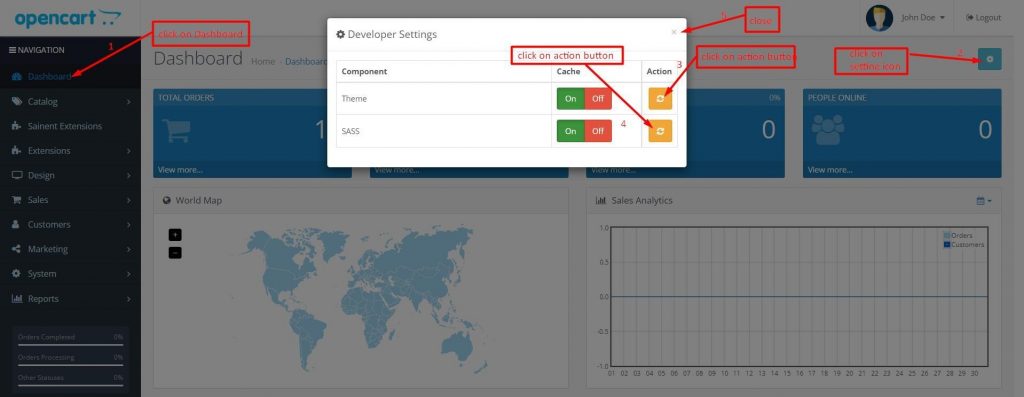
Both 3.x and 4.x render through Twig, so there’s a compile step before anything reaches the browser. Compiled output can be kept and reused instead of rebuilt on every hit. How much of that you drive from the admin is the part that shifts: the developer-oriented settings exist in both branches, they aren’t in the same place, and a commercial theme will sometimes bolt its own cache controls on beside them.
Go and read what your install actually offers. The underlying principle outlives the version differences. On your machine you want a template edit visible the moment you hit save. On production you don’t want to redo work whose result you could have kept. What usually goes wrong isn’t a bad default at all. It’s that the developer who switched to development behaviour in March wasn’t the person who deployed in June, and nobody wrote it down.
SASS Compilation
If your build or theme exposes a SASS compiler option, SASS belongs in your deployment step, not in a customer’s page request. Compile when you edit, commit the CSS, ship that. Not every install has this option, and the ones that do don’t put it in the same place, so check before you spend twenty minutes hunting for a switch that was never there.
The OCMOD Modification Cache
Different animal entirely, and worth understanding separately. OCMOD applies modifications over core files, and OpenCart runs against the modified result rather than the original. When what’s applied has drifted out of step with what’s installed, you get behaviour that matches neither the core code you’re reading nor the extension you just updated.
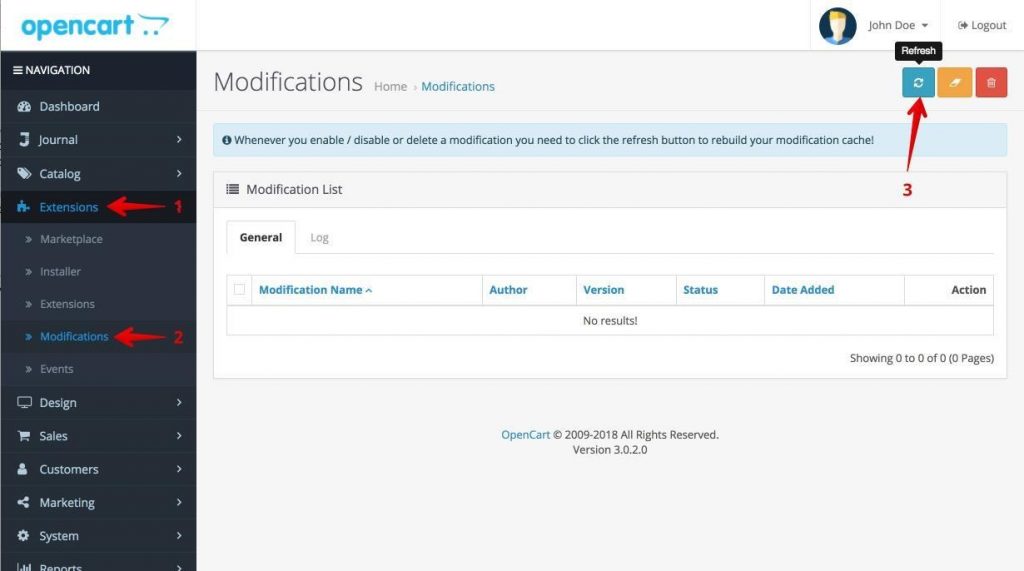
On 3.x the routine is Extensions > Modifications, then Refresh, after you install, update or remove any modification. 4.x reworked how OCMOD packages get installed and applied, so don’t assume that screen and button are waiting for you. Find your version’s step and make it part of deployment either way.
I’m labouring this because the symptoms lie to you. Stale modifications look like bugs. They look like an extension that “just doesn’t work.” Sometimes they look like a performance problem, because the store ends up doing duplicated or unintended work. If something started behaving inexplicably right after an extension change, check here before you open a profiler.
Image Configuration and the Resize Cache
Since 2.x, the product image dimension fields have generally lived with the theme rather than on the store settings Image tab, which mostly deals with logo and icon. Edit your active theme in the themes area and you’ll find the full set: category, thumb, popup, additional, related, compare, wishlist, cart, location. Field names and the admin route aren’t identical between 3.x and 4.x. Plenty of competent developers open Settings > Image, see logo and icon, and conclude the dimensions aren’t configurable. They usually are. They’re just filed somewhere unexpected.
Two separate things go wrong here.
The configured dimensions don’t match what the page draws. Thumbnails rendering in a 300px column while the thumb dimension says 800, so every visitor pulls down an image nearly three times wider than the layout uses and the browser scales it back. Now do that across a 24-product grid. Getting OpenCart image optimization settings lined up with real rendered sizes cuts transfer weight and browser decode work, and it tends to help layout stability as a bonus. Measure the rendered width in devtools at your actual breakpoints. Don’t read it off the design file, which lies about mobile.
The first request pays for the resize. When the cached file for a given source and size isn’t there yet, OpenCart generates the derivative and stores it under image/cache. After that, requests serve the cached copy. Fine in steady state, expensive right after you change something. Your version, your theme and any image extension can all affect exactly when regeneration kicks in, so treat the mechanics as something to verify on your install rather than a rule.
Here’s the one that catches people. You fix every image dimension on a Friday afternoon, clear image/cache to be thorough, and the store immediately feels worse than when you started. Nothing’s broken. You just invalidated every derivative at once and handed the regeneration bill to whoever’s browsing. So: do dimension changes outside peak hours, then warm the cache yourself by crawling category and product pages so the files exist before customers arrive. On shared or otherwise constrained hosting, crawl slowly and watch server load while you do it. Firing a fast crawler at a bulk resize job is a good way to cause a worse outage than the one you set out to fix.
Modern Image Delivery
Dimensions are the OpenCart half of this. Most of the remaining weight is in delivery.
- Upload sensibly sized sources. OpenCart has to read whatever you hand it before it can scale anything, so a 5MB camera original costs memory and CPU on that first resize, and disk space forever after. Resize before upload. Yes, you’ll have to tell the client this more than once.
- Serve WebP or AVIF if your stack can. Current browsers handle both, and the files usually come out smaller than the JPEG or PNG you’d otherwise ship. Core OpenCart image handling was built around the older formats, so this normally arrives via an extension, your web server, or a CDN doing the conversion. Check which of those you’ve actually got before planning around it.
- Responsive images, if the theme emits them. With srcset and sizes in place, a phone pulls a phone-sized file instead of the desktop derivative. Lots of themes never got this, and adding it is template work. There’s no admin toggle.
- Lazy load below the fold. Native loading=”lazy” covers most of it for almost nothing. Leave the hero and the main product image eager, or you’ll damage your largest contentful paint while trying to improve it.
- Warm the cache after any dimension change, as above.
Server Tab Settings Worth Checking
Output Compression
OpenCart has an output compression level in store settings. Forget which number to put in it for a minute. Work out who’s compressing first.
Load a real product page and read the response headers. If content-encoding already says gzip or br, something upstream is handling it: Apache with mod_deflate or brotli, nginx, a reverse proxy, your CDN. Switch on application-level compression as well and you can end up double-compressing, which surfaces as a screenful of binary garbage or a page that simply won’t load. I’ve watched people burn an hour on that before checking the headers.
Pick one layer. Where server or CDN compression is available, use it. It’s cheaper than doing the work in PHP on every request, and it covers your CSS, JS and fonts too, not just the HTML document. OpenCart’s own setting is the fallback for when you don’t control the server config, which on shared hosting you often don’t. The outcome nobody wants is a text-heavy category page going out uncompressed because both layers were off and each side assumed the other had it covered.
Error Handling
Display Errors off in production. Most people get that right. Log Errors on and actually watched, which is the half that gets dropped.
An extension throwing a notice on every page load means OpenCart appending to that log on every page load. Bloated log files turn up constantly on stores nobody audits, and once a file is big enough you’re paying for disk writes on every request and you can’t practically read the thing either. What works:
- Read the tail of the log and find what’s repeating.
- Fix the cause in the extension or template producing it.
- Archive or rotate the oversized file using whatever your host supports, and keep a copy until you’re confident the source is fixed. If it’s large enough that moving it is disruptive by itself, talk to your host first.
- Leave logging on afterwards.
Switching logging off to stop a file growing kills the symptom and blinds you for the next problem, which you’ll then get to diagnose with nothing to read.
SEO URLs
SEO URLs are an SEO, usability and URL-consistency feature. Worth enabling for those reasons. Presenting them as a speed optimization is overselling, and experienced clients notice.
There is a performance-adjacent angle, just a narrower one than blog posts suggest. URL resolution involves keyword lookups, so the size and health of that table matters. Extensions that generate keyword records carelessly can leave you with piles of duplicate or orphaned rows, and those lookups get more expensive than they should be. If SEO URLs are on, put the table on your audit list and sanity-check the row count against what your catalogue could plausibly produce.
The configuration trap still applies. Apache needs the rewrite rules in place, traditionally by renaming the supplied htaccess.txt to .htaccess. nginx needs equivalent rules in the server config. Specifics differ across 3.x, 4.x and hosting stacks, so follow your version’s documentation rather than a generic snippet. Flip the toggle without working rewrites and you get a store full of 404s, which is the classic five-minute panic.
Database Structure and Growth
OpenCart database optimization is where the structural wins hide, and it’s the layer you can’t see from the admin at all.
Storage Engines
Run SHOW TABLE STATUS against the store database and read the Engine column. Stores dragged through several OpenCart versions sometimes still carry MyISAM tables, since what a given release shipped with has changed over time. Look rather than assume.
InnoDB generally suits OpenCart’s workload better. Row-level locking, real transactions. MyISAM’s table-level locking can serialise access on exactly the tables that see constant writes: sessions, carts, orders. That contention tends to stay invisible until you’ve got real concurrency, which is precisely why it slips past on staging.
Now the caution, because this is the change most likely to ruin your evening. Don’t run a blanket conversion script across every table because a forum post said InnoDB is faster. What holds up: take a full backup and verify you can restore it; run the conversion on a staging copy of real data, not a trimmed dump; check for anything leaning on MyISAM-specific behaviour, FULLTEXT indexes used by search extensions especially; look at index usage and disk space, since InnoDB stores things differently; exercise checkout, search and admin on staging afterwards; then do it in a maintenance window. Convert what benefits. Verify as you go. Keep the rollback.
Table Growth
Session records, guest carts, activity logs, statistics tables fed by report extensions. Those are your growth candidates.
How much gets tidied up on its own varies, and I’d rather you checked than took a blanket claim from me: it turns on your OpenCart version, whether sessions live in files or the database (a configuration choice), which extensions are installed, and whether anybody set up a cron cleanup. So measure. Row counts and table sizes today, same numbers in a month. Anything growing without a ceiling needs a retention period the business is happy with and a scheduled job to enforce it. A session table dragging around hundreds of thousands of long-dead rows makes routine lookups pricier than they need to be, and it degrades slowly enough that nobody ever notices it happening.
Indexes
Check indexes against the queries your store genuinely runs, using the slow query log and EXPLAIN, before adding anything. An index list copied from a forum thread buys you write overhead for reads you may not even perform.
Measuring Before and After Honestly
One change at a time. It’s the only way to know which change earned its keep, and it’s what separates real OpenCart speed optimization from a weekend of guessing followed by a confident invoice.
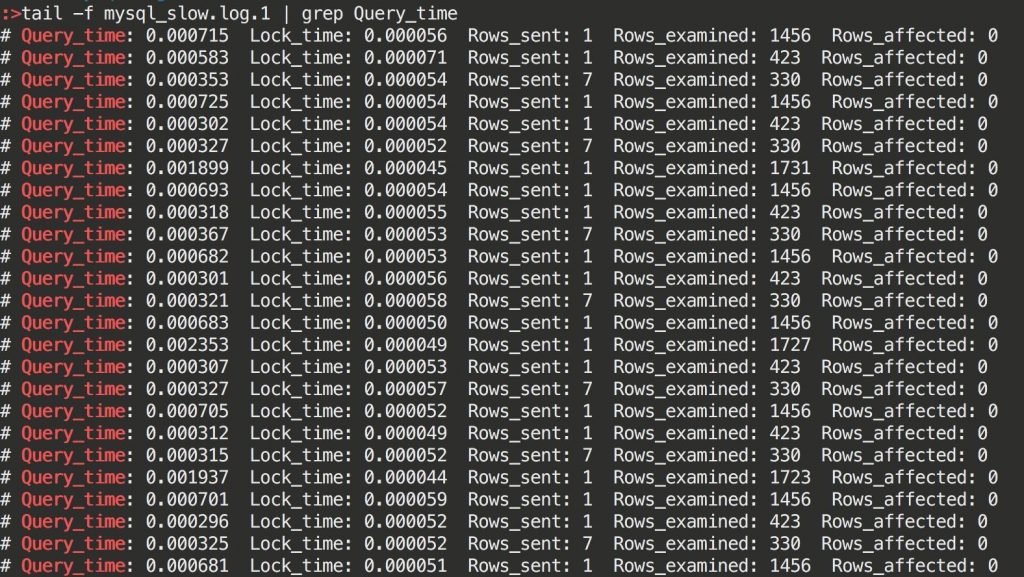
Different changes surface in different numbers, so decide what you’re watching before you touch the setting:
- Query count per page. Clearest signal for category counts and report extensions. A debug or profiling extension, or the general query log on staging.
- Database execution time. Not the same thing as query count. Ten cheap queries and one terrible one are different problems with different fixes. Slow query log and EXPLAIN.
- Server response time and TTFB. Where template processing and application work show up.
- HTML transfer size. Where compression and items-per-page land.
- Image bytes and request count. Where dimension and delivery work lands.
- Core Web Vitals. LCP moves with image work and above-the-fold decisions. CLS moves with correctly sized images and reserved space. Treat these as outcomes for the customer, not as your diagnostic instrument.
- Behaviour under concurrency. Load test if you possibly can, even crudely.
That last one deserves the emphasis. Moving off MyISAM can read as nothing at all on an idle staging box and matter enormously under real concurrent traffic, because contention is the whole problem it solves. The opposite trap exists too: a single synthetic page score bounces around enough between runs that it’ll happily credit a change that did nothing, or bury a genuine win behind a tracking script that loaded slowly on that one run. Take several samples. And don’t promise anyone a specific PageSpeed number, because you can’t control the half of that score that belongs to their marketing tags.
Common Mistakes
- Ten changes in one deployment, then no idea which one caused the regression.
- Clearing image/cache at 11am on a Tuesday.
- Application-level compression stacked on top of server or CDN compression.
- Turning logging off to stop a file growing instead of fixing what fills it.
- Setting image dimensions from the design file rather than the rendered page.
- Assuming a caching extension makes configuration irrelevant. Cached pages still get generated once, and sessions carrying a cart or a logged-in customer often skip full-page caching entirely.
- Following settings advice written for a different OpenCart version, then deciding the store is broken when the option isn’t where the article promised.
- Treating any of this as finished. Every new extension is another chance for work to appear in the request path.
A Practical Review Checklist
Run these on any store you inherit, on staging wherever the change carries risk:
- Category product counts: off unless the business needs them, and compare query counts on your deepest category page.
- Products per page: read the current value, measure a real category URL before raising it.
- Local tab: automatic currency updating off if you sell in one currency.
- Report extensions: disable the ones nobody reads.
- Developer and theme settings: nothing development-oriented left running on production, checked against your version’s actual options.
- SASS: compiled at deploy time, not per request, if your build uses it.
- OCMOD: your version’s refresh step after every extension change.
- Image dimensions: aligned with rendered sizes, then cache warmed outside peak hours.
- Image delivery: lazy loading below the fold, WebP or AVIF where the stack supports it, no more camera originals.
- Compression: exactly one layer doing it, server or CDN where available.
- Error handling: display off, logging on, log read, repeats fixed, oversized files rotated safely.
- SEO URLs: on with working rewrites, keyword table checked for duplicates and orphans.
- Database: engines reviewed, any conversion planned properly from backups and staging, index usage checked against the slow query log.
- Table growth: measured now, measured again next month, retention added where something has no ceiling.
Beyond OpenCart Settings
Configuration is one layer. Once you know what the application is doing, the environment is the next place to look, and the order isn’t arbitrary. Fixing the server first tends to mask application problems rather than solve them, and then you’re paying monthly for the mask.
- PHP version. Run something your OpenCart release supports. 4.x targets PHP 8; plenty of 3.x stores are still on older releases. Read your build’s stated requirements, and treat a PHP upgrade as an extension-compatibility project, not a dropdown in cPanel.
- OPcache. Confirm with the host that it’s on and sized for the codebase. Cheapest win available on any PHP application.
- PHP-FPM and web server config. Worker counts, memory limits, timeouts. These decide how the store behaves under load, which a single-request test won’t show you.
- MySQL or MariaDB config. Buffer pool sizing especially, once you’re on InnoDB. Frequently left at something that has nothing to do with the actual server.
- Edge compression and cache headers. Static assets compressed and cacheable.
- CDN. Worth it for images and static assets, and for the distance between your server and your customers.
- Hosting resources. Sometimes the honest finding is that the plan is too small for the catalogue and the traffic. That’s a legitimate answer. It should just be a conclusion you reached with measurements, not the first thing you reach for.
Where to Start
Most OpenCart performance settings that hurt a store are the way they are because they suited an earlier phase of the project and nobody went back. Finding that out costs you an afternoon, not a new theme, a new host or a new caching stack.
So: pick your deepest category page. Record its query count and server response time. Turn off category product counts on staging and measure the same page again. That one comparison tells you how much of the problem lives in configuration rather than infrastructure, and whether the rest of this list is worth your time. Repeat the measure, change, measure loop for each item and you’ll end up able to tell the client exactly which change bought what. Far better position to be in than saying you improved a score.


